

Chapter 10 of 12
LIVE BUILD
Live build, steps 0 to 5
We drive the console, in your own AWS account, in the Asia Pacific (Thailand) Region. The build starts with the network and ends with a public URL. Each step shows what we click (DO), what you should see (SEE), and the usual problem at that step (IF IT BREAKS). You can repeat the same steps later in any account.
| Setting | Value used today |
|---|---|
| Account and Region | Your own AWS account, Asia Pacific (Thailand), ap-southeast-7. This Region is off by default in an account and has to be enabled once |
| Network | A new VPC, course-vpc: two Availability Zones, two public subnets, two private subnets, one NAT gateway. Step 0 creates it |
| App | nginxdemos/hello, a public image whose page prints which container answered |
| Names | VPC course-vpc, cluster course-demo, task definition course-web, service course-web-svc, load balancer course-web-alb, target group course-web-tg, security group course-web-sg |
| Tag | Project = course-demo on everything we create, so it is easy to find and delete afterwards |
What you need: an AWS user that can create networking, EC2, ECS, load balancers and IAM roles for the session (administrator access is simplest), and the Thailand Region enabled.
Two things bill by the hour while they exist: the NAT gateway and the load balancer. Step 6 removes both.
Console: https://console.aws.amazon.com/ecs/v2
Step 0. Create the VPC
This is the landing zone for today: one account, one VPC. Public subnets hold the front door, private subnets hold the workload.
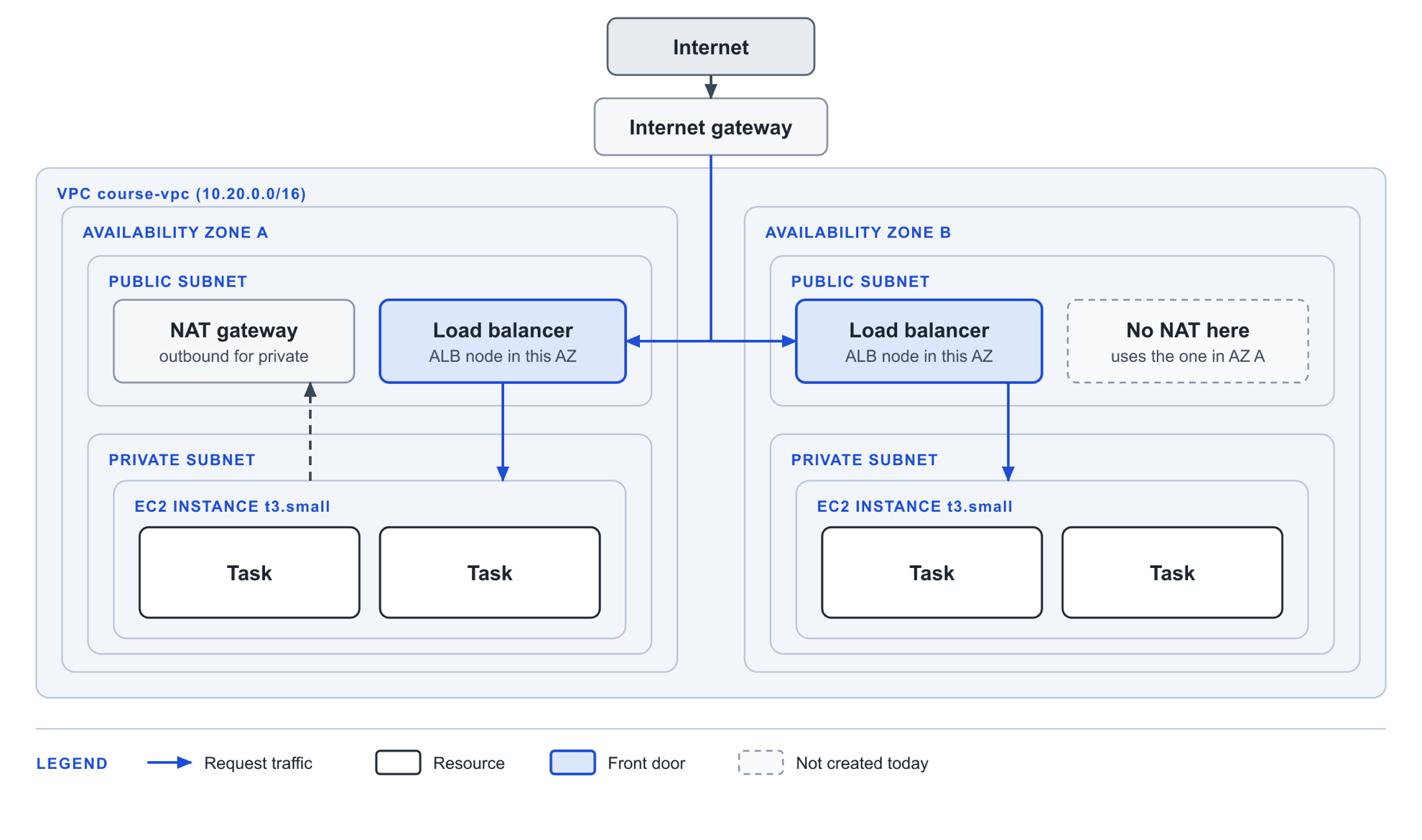
Step 0: one VPC across two Availability Zones with public and private subnets DO
- VPC console, Create VPC. Resources to create: VPC and more.
- Name tag auto-generation:
course. This names every resource it creates, for examplecourse-vpc. - IPv4 CIDR block:
10.20.0.0/16, or any range that does not overlap your other networks. IPv6: none. - Number of Availability Zones: 2. Public subnets: 2. Private subnets: 2.
- NAT gateways: In 1 AZ. One is enough for today; production would use one per Availability Zone.
- VPC endpoints: keep S3 Gateway (free). DNS options: leave both ticked.
- Tags: add
Project=course-demo. - Create VPC.
SEE: a workflow that ticks off each resource, with the NAT gateway last. Then a resource map: two public subnets, two private subnets, route tables, an internet gateway and a NAT gateway.
IF IT BREAKS
- Creation fails on the Elastic IP: the NAT gateway needs one, and an account can hold five per Region by default. Release any unused ones.
- The NAT gateway stays Pending for a few minutes: wait. The VPC is not usable for the private subnets until it is Available.
What just happened: one click created the whole network. The private subnets send outbound traffic to the NAT gateway. The public subnets send it to the internet gateway.
Step 1. Create the cluster
DO
- ECS console, Clusters, then Create cluster.
- Cluster name:
course-demo. - Infrastructure: choose the card for self-managed EC2 instances (the third card).
- Auto Scaling group: Create new. Provisioning model: On-Demand. AMI: Amazon Linux 2023.
- EC2 instance type: t3.small.
- EC2 instance role: Create default role if
ecsInstanceRoleis not in the list, otherwise pickecsInstanceRole. - Desired capacity: the form shows minimum 0 and maximum 5. Change them to minimum 2, maximum 4.
- SSH key pair: none. Root EBS volume: leave 30 GiB.
- Network settings: open it. VPC:
course-vpc. Subnets: tick only the two private subnets. Leave the default security group. - Tags: add
Project=course-demo. - Create.
SEE: a banner saying a CloudFormation stack is being created. After 2 to 4 minutes the cluster shows 2 registered container instances on its Infrastructure tab.
IF IT BREAKS
- The console still says "in progress" after 5 minutes: refresh the cluster page, or open the CloudFormation stack from the banner link. The stack status is the real state.
- The instances start but the cluster shows 0 container instances: they are in private subnets and reach ECS through the NAT gateway. Check that the private route table has
0.0.0.0/0pointing at the NAT gateway. - You left the instance type at the default micro size: tasks later stay in PROVISIONING, because a micro instance has about 900 MiB left after the ECS agent and only one spare network interface.
What just happened: one click created a CloudFormation stack with a launch template, an Auto Scaling group and a capacity provider. This is the machine layer Fargate hides.
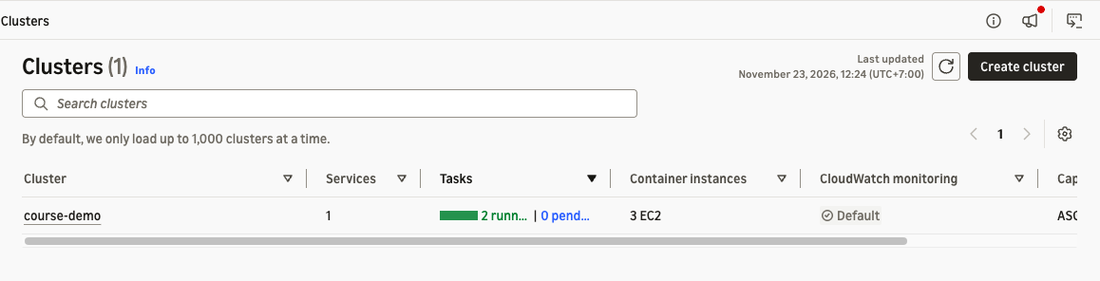
Clusters page: Create cluster is top right 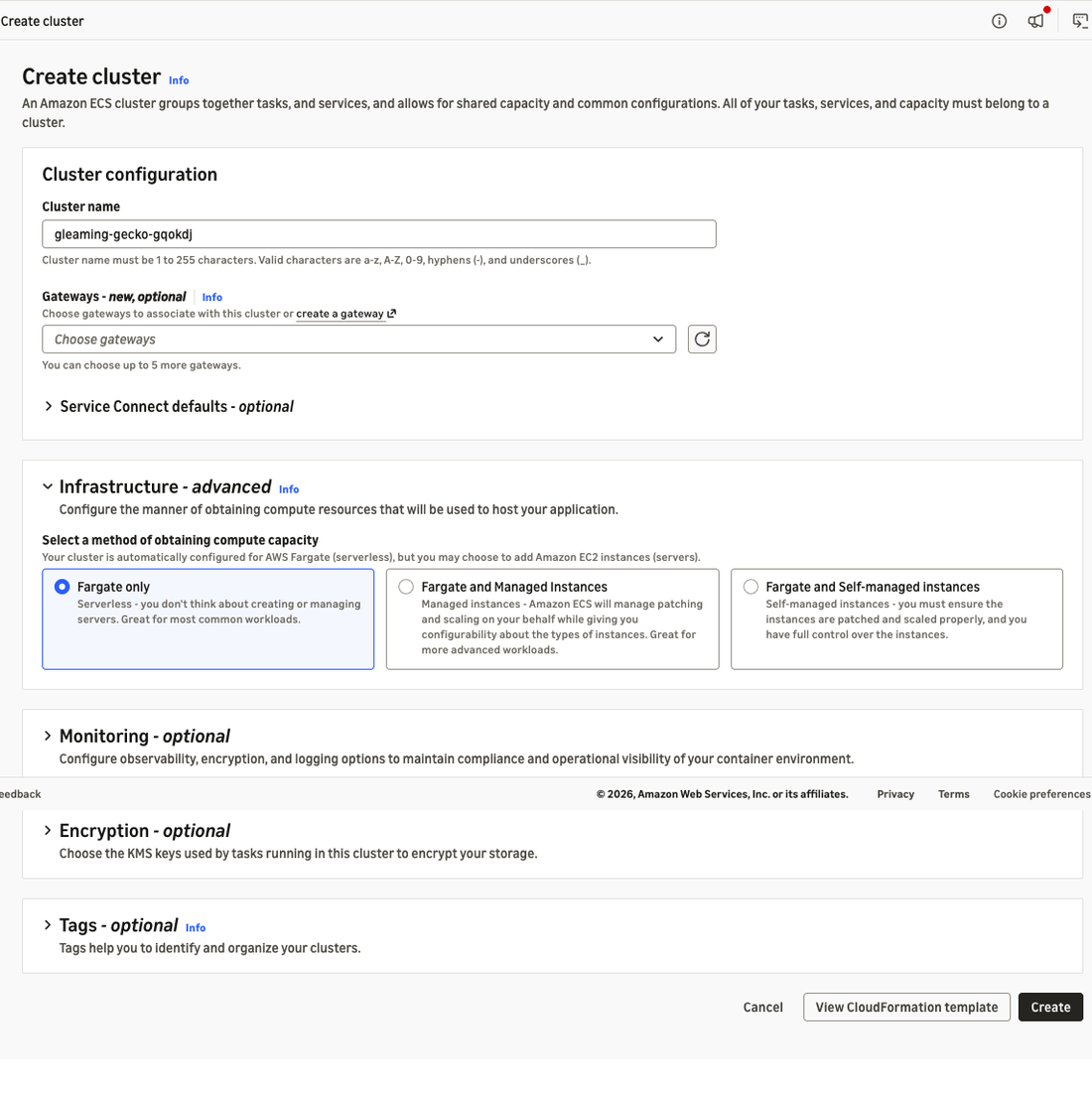
The Create cluster form before any change: Fargate only is the default 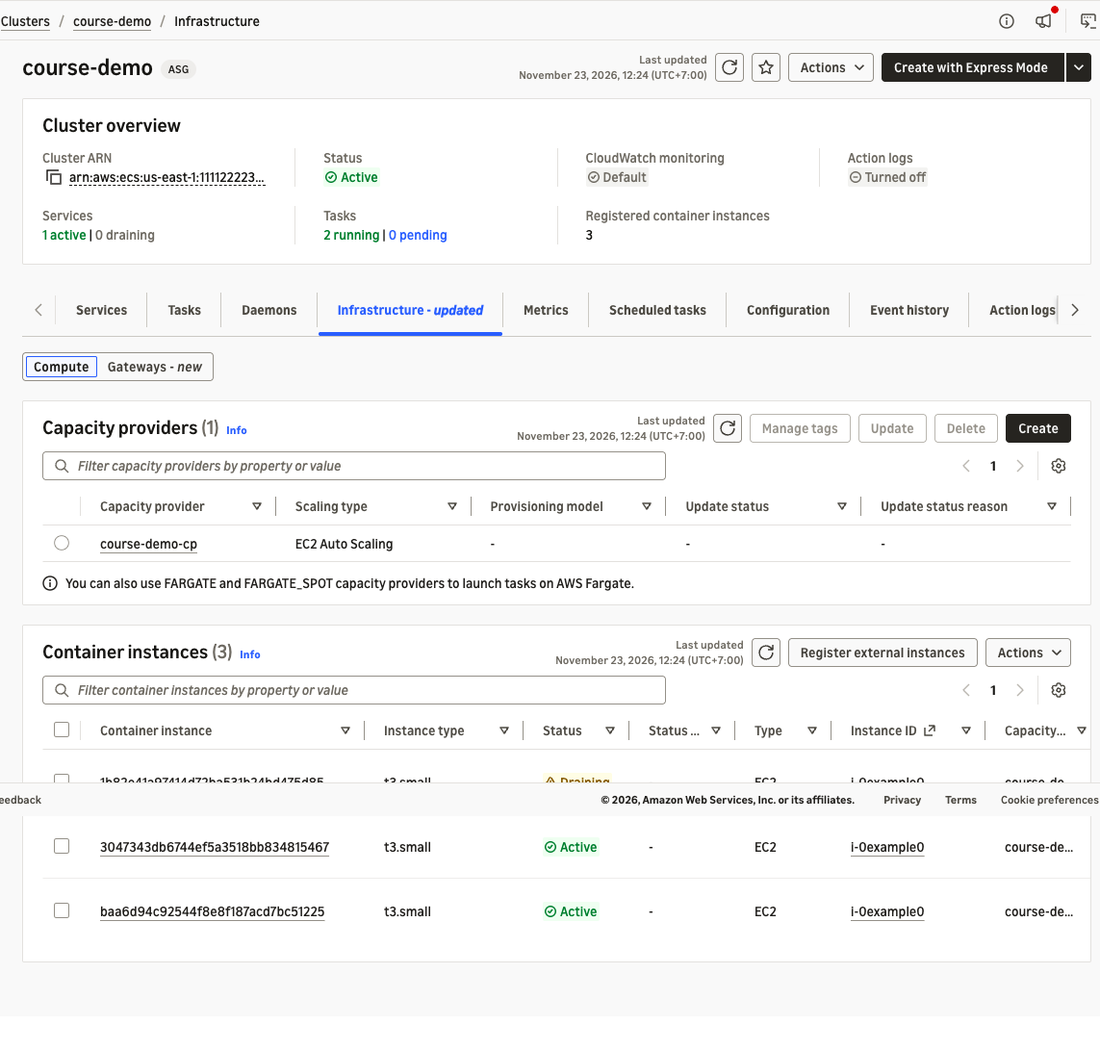
After: the capacity provider and the registered EC2 container instances Step 2. Register the task definition
DO
- Task definitions, then Create new task definition (the plain one, not "with JSON").
- Family:
course-web. - Launch type: tick Amazon EC2 instances.
- Task size: CPU .25 vCPU, memory .5 GB.
- Task execution role:
ecsTaskExecutionRole(choose Create new role if it is not in the list). Task role: none. - Container 1: name
web, imagenginxdemos/hello:latest, container port 80. - Log collection: leave CloudWatch Logs turned on.
- Create.
SEE: "Task definition successfully created", status ACTIVE, revision 1.
IF IT BREAKS
- The console fills memory with 3 GB by default. A t3.small has 2 GiB, so a 3 GB task can never be placed. Always size the task to the instance.
- The family name changed after you typed the container name: scroll up and type it again.
What just happened: we wrote the blueprint. Nothing runs yet.
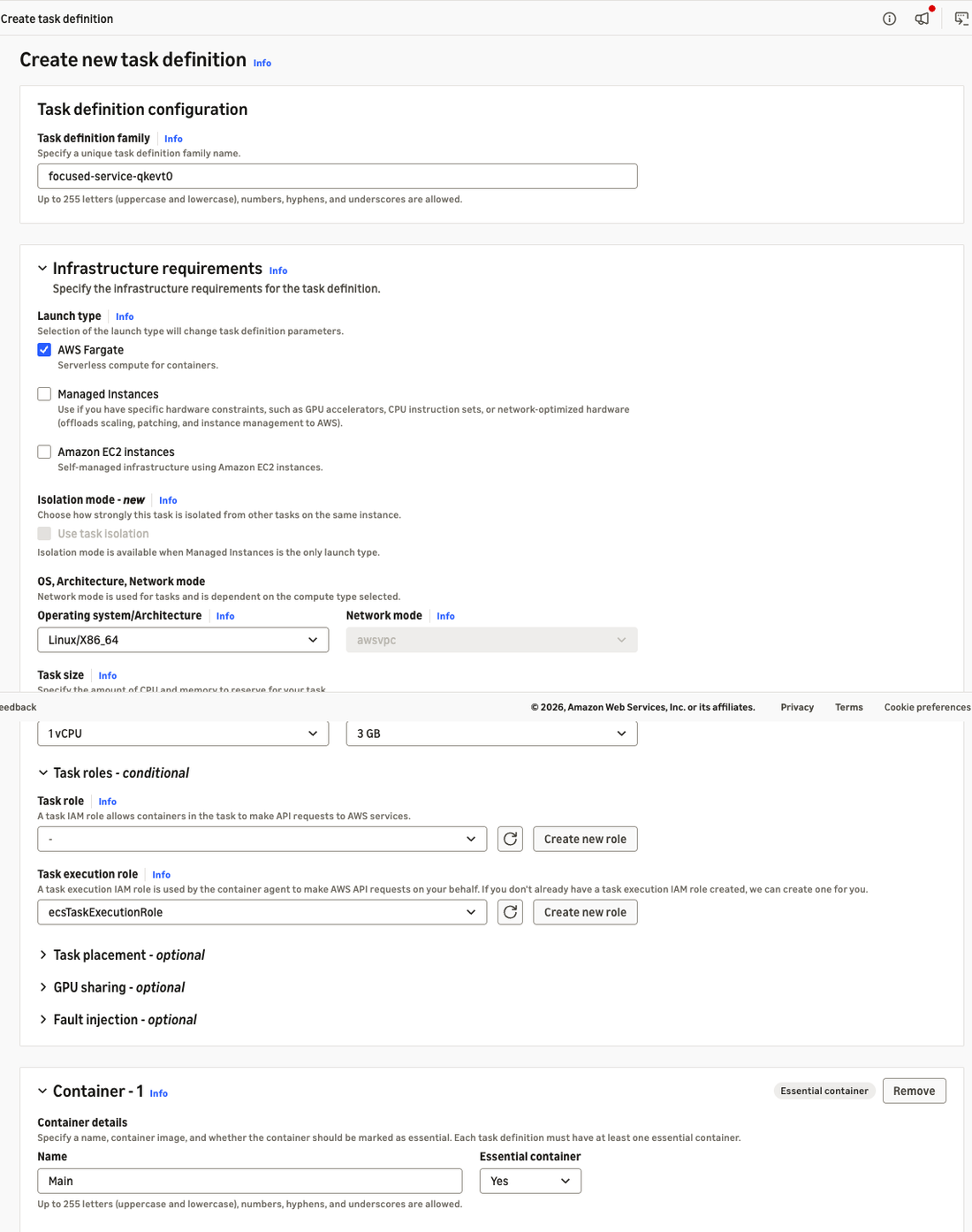
The Create new task definition form, top part 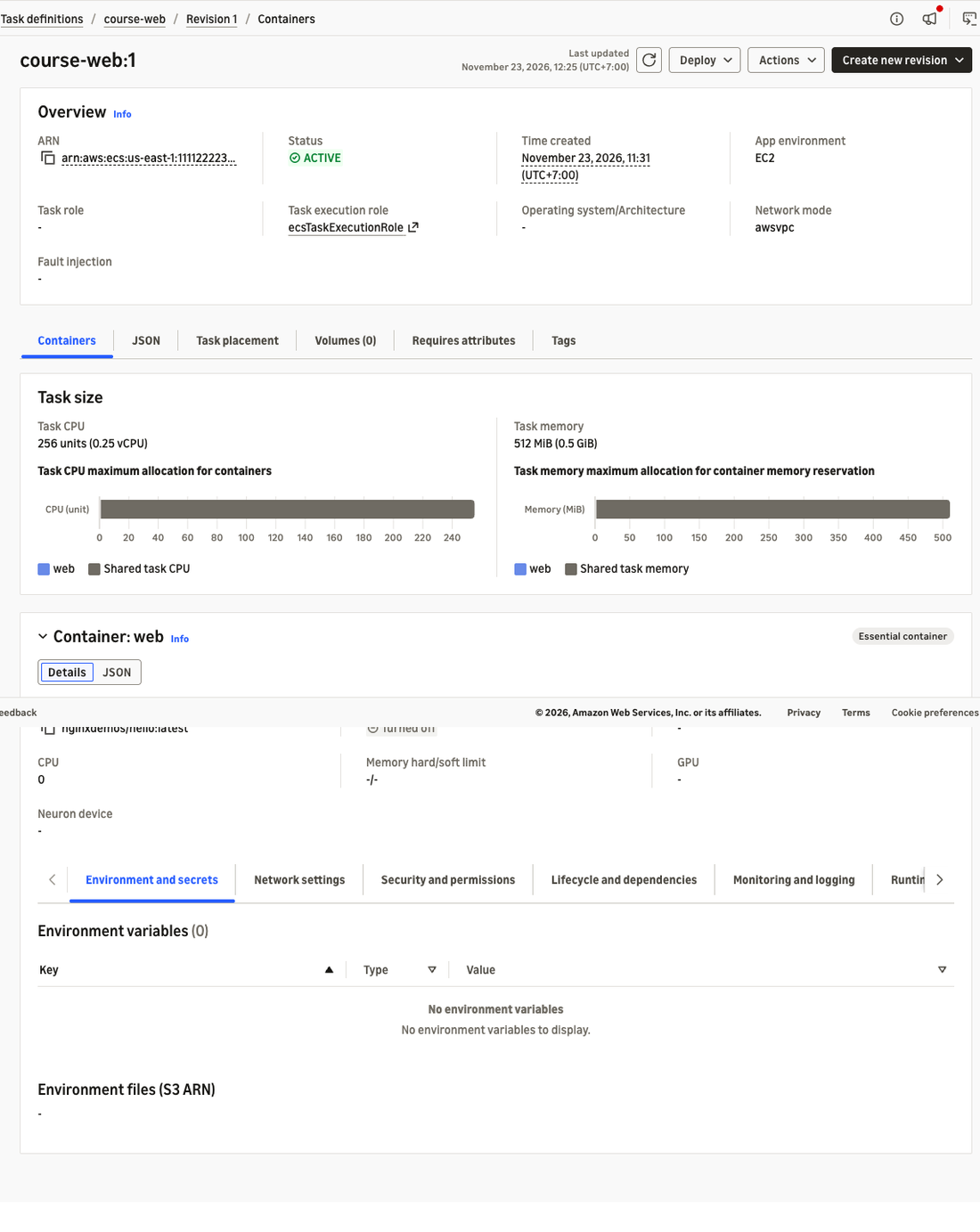
After: course-web revision 1, EC2, awsvpc, 0.25 vCPU and 512 MiB Step 3. Create the load balancer and the service
The load balancer goes in the public subnets and the tasks in the private ones, so we create the load balancer first and then point the service at it.
DO
- EC2 console, Security groups, Create security group: name
course-web-sg, VPCcourse-vpc, inbound rule HTTP, port 80, source Anywhere-IPv4. TagProject=course-demo. Create. - EC2, Target groups, Create target group: target type IP addresses, name
course-web-tg, protocol HTTP, port 80, VPCcourse-vpc, health check path/. Next, register no targets, Create. - EC2, Load balancers, Create load balancer, Application Load Balancer: name
course-web-alb, scheme Internet-facing, VPCcourse-vpc. Network mapping: both Availability Zones, and for each pick the public subnet. Security group:course-web-sgonly (remove the default one). Listener HTTP 80, forward tocourse-web-tg. TagProject=course-demo. Create load balancer. - ECS, cluster
course-demo, Services tab, Create. - Task definition family:
course-web, revision Latest. Service name:course-web-svc. - Compute configuration: Capacity provider strategy, use the cluster default.
- Desired tasks: 2.
- Networking: VPC
course-vpc, subnets: only the two private subnets, security groupcourse-web-sg. - Load balancing: tick Use load balancing. Application Load Balancer, Use an existing load balancer
course-web-alb, containerwebport 80, Use an existing listener (HTTP 80), Use an existing target groupcourse-web-tg. - Tags: add
Project=course-demo. Create.
SEE: "Deployment is in progress". Within a few minutes the service shows 2 of 2 tasks running, and the target group shows 2 healthy targets.
IF IT BREAKS
- Tasks stay in PROVISIONING: open the service's Events tab and read back several lines. Look for
RESOURCE:MEMORY(task too big for the instance) orRESOURCE:ENI(no spare network interface). - Compute configuration shows Use custom (Advanced) with nothing in it: add the cluster's capacity provider with weight 1.
- You picked Launch type instead of Capacity provider strategy: the service then bypasses the capacity provider, so no new instance is added for it, and on a full cluster the task cannot be placed. Use Capacity provider strategy, Use cluster default (the console preselects it).
- The load balancer address times out: open the load balancer's Network mapping and check that both subnets are the public ones. An internet-facing load balancer in private subnets has no route to the internet. Then check that its security group allows HTTP 80.
- Targets stay Unhealthy: the task's security group must allow HTTP 80 from the load balancer. Today one group does both jobs.
What just happened: the internet reaches the load balancer in the public subnets. The load balancer reaches the tasks in the private subnets. Nothing reaches the tasks directly.
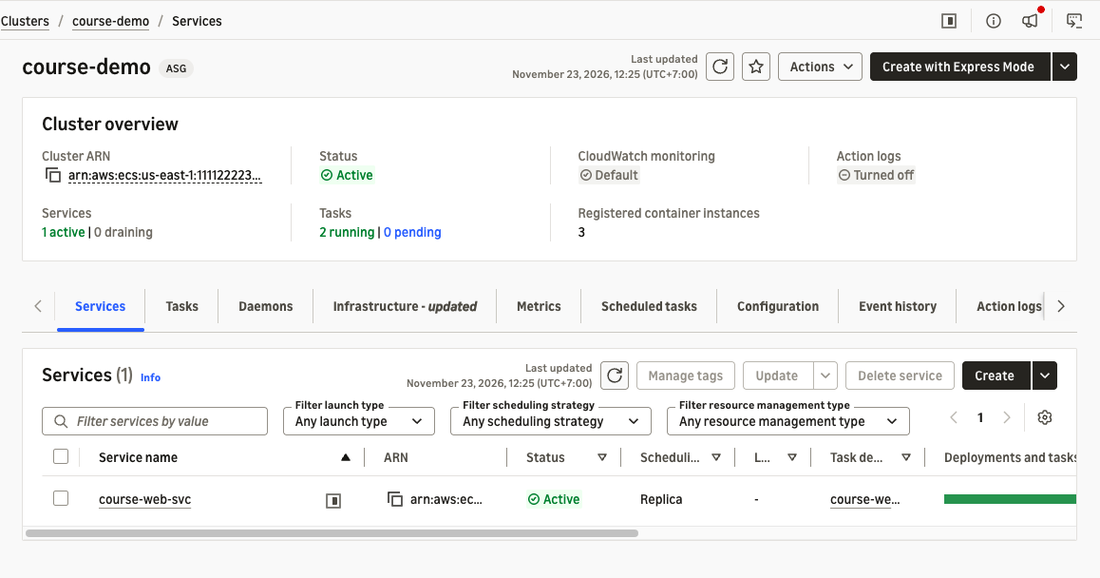
Cluster page, Services tab: Create is on the right 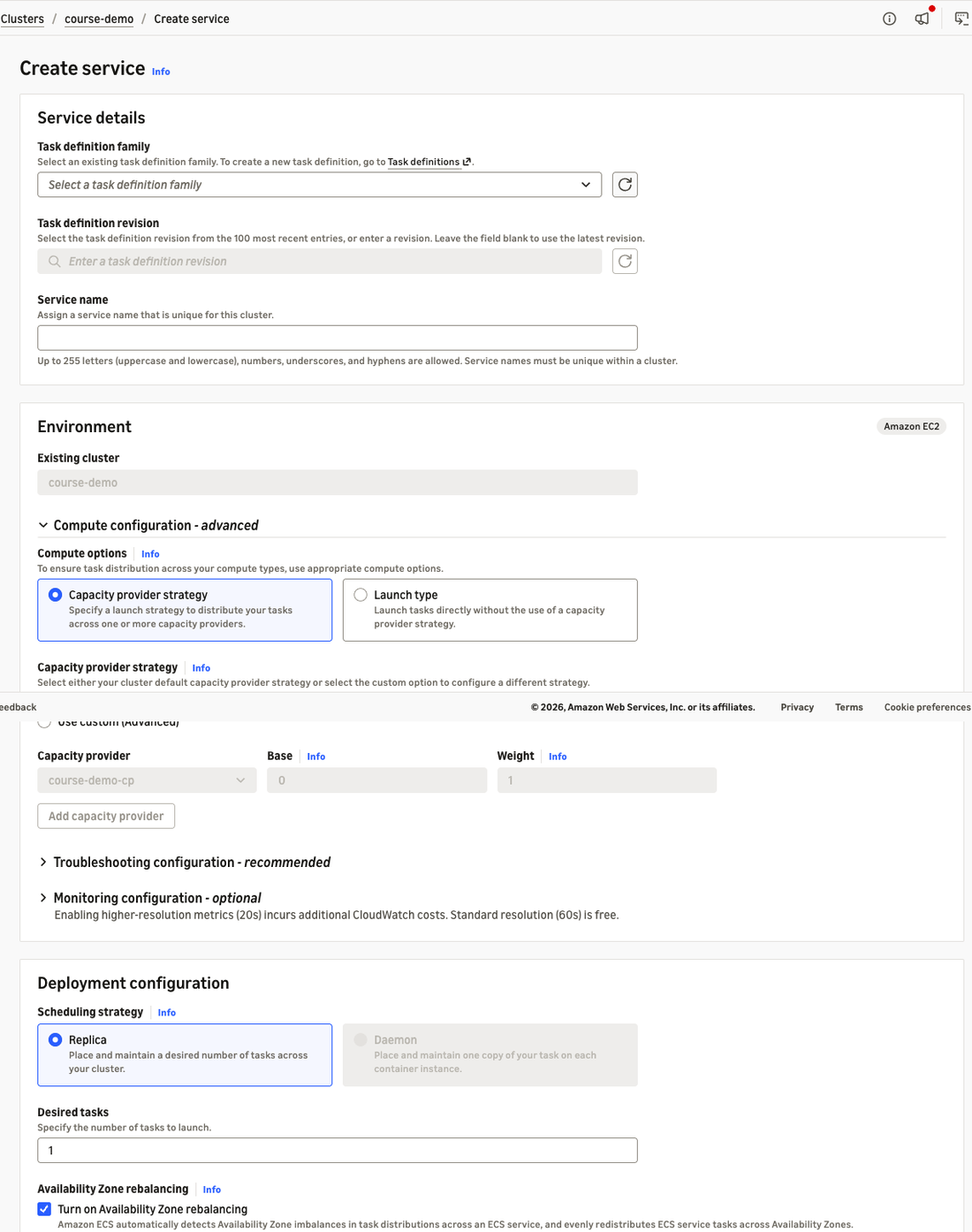
Create service: Capacity provider strategy and Use cluster default are preselected 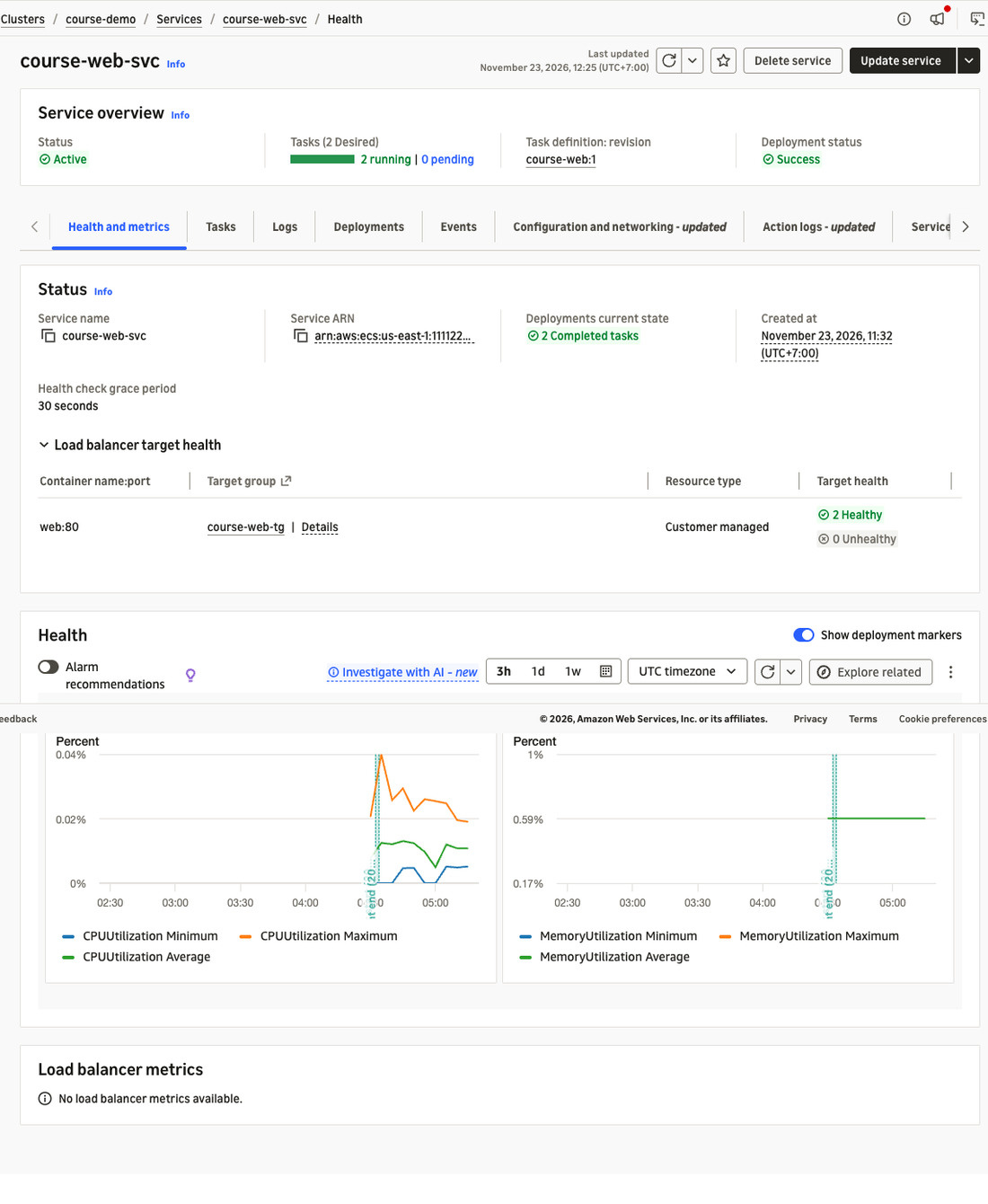
After: tasks running and both targets Healthy 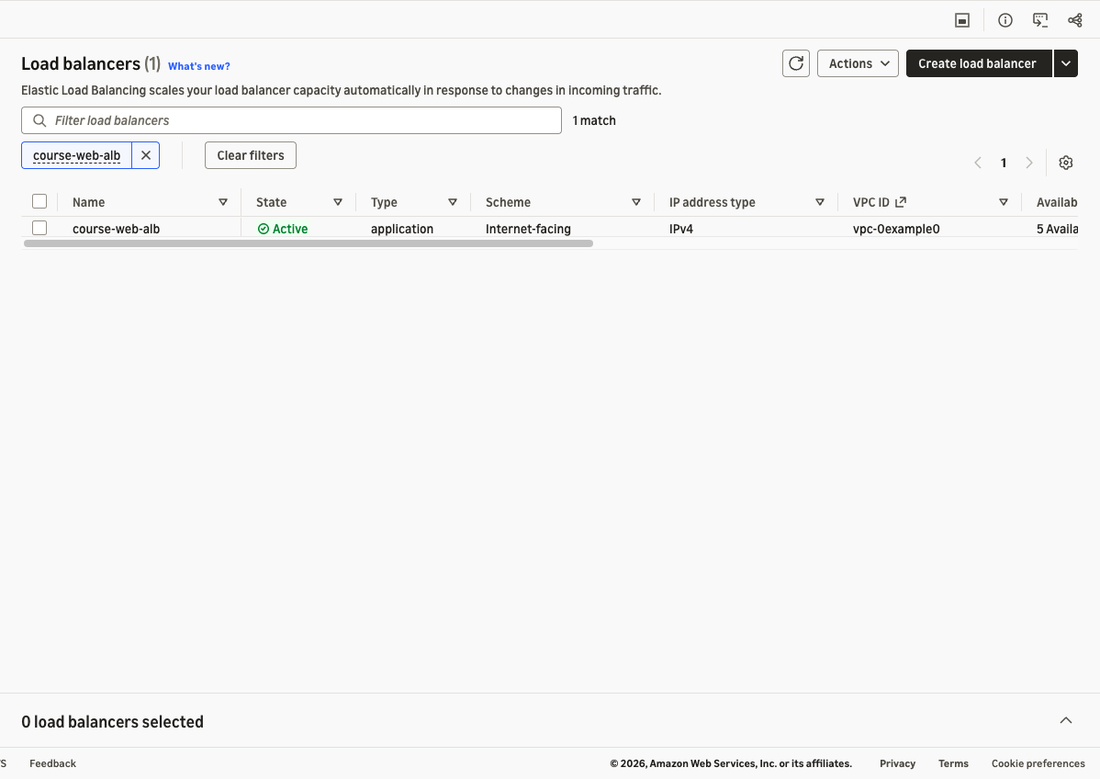
EC2, Load balancers: course-web-alb is Active - EC2 console, Security groups, Create security group: name
Step 4. Prove it works
DO: copy the load balancer's DNS name from EC2, Load balancers,
course-web-alb, and open it in a browser. Refresh a few times.SEE: the nginx demo page. The Server name line changes between refreshes, for example
ip-10-20-x-x.ap-southeast-7.compute.internalfollowed by a differentip-10-20-x-xname. Each name is one task, so the load balancer is spreading requests across both.BASHcurl -s http://<alb-dns-name>/ | grep -A1 "Server name"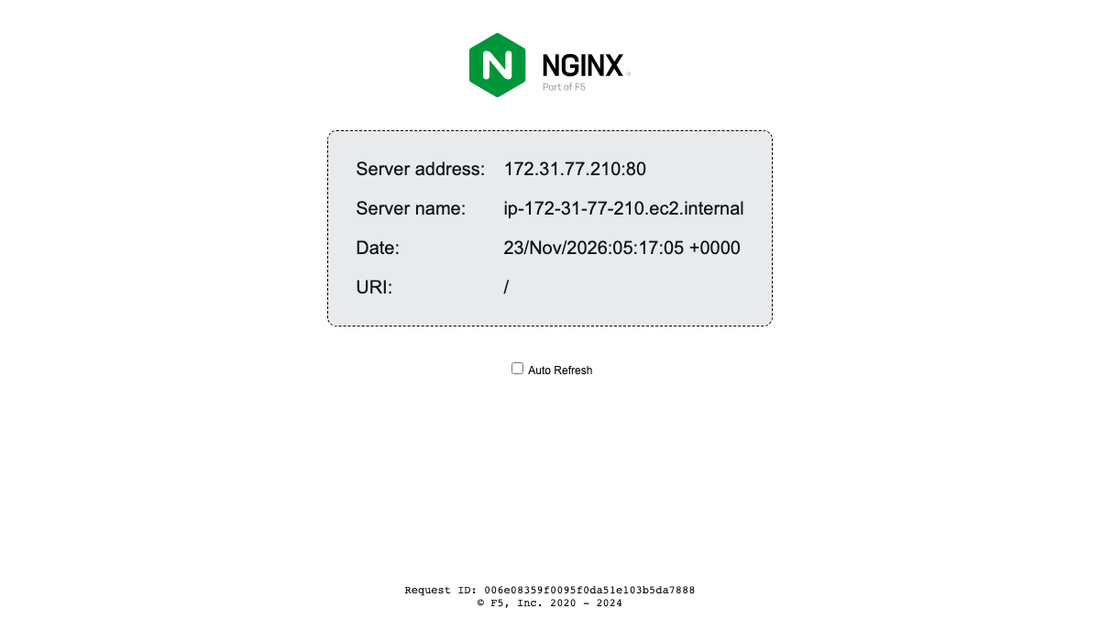
The Server name line changes between refreshes Step 5. Scale out and watch both layers move
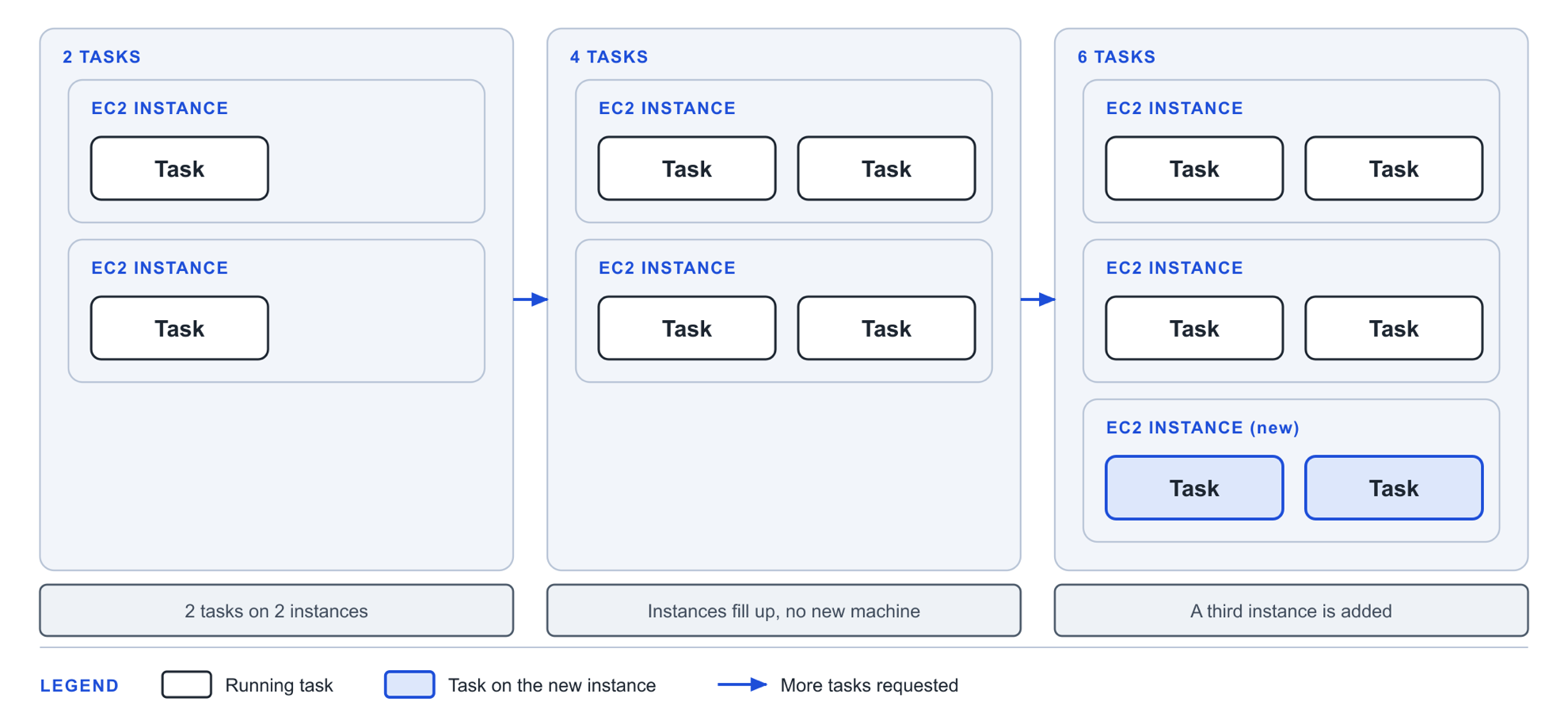
Scale out: 2, 4 and 6 tasks, and the third EC2 instance added at 6 DO
- Service
course-web-svc, Update service, desired tasks 4, Update. - Watch the Tasks tab. Then set desired tasks to 6.
SEE
- At 4 tasks: the two existing t3.small instances fill up, 2 tasks each. No new machine.
- At 6 tasks: 2 tasks wait in PROVISIONING because there is no spare network interface. The capacity provider raises the Auto Scaling group to 3 instances, the new instance registers, and the waiting tasks start.
This is the two-question model from section 2.2, live: the service asked for more tasks, and the capacity provider found machines for them.
IF IT BREAKS: the Auto Scaling group reacts after about a minute and the new instance needs about two more, so six tasks are running about three minutes after you ask. Open EC2, Auto Scaling groups, the group, Activity tab, to watch the launch.
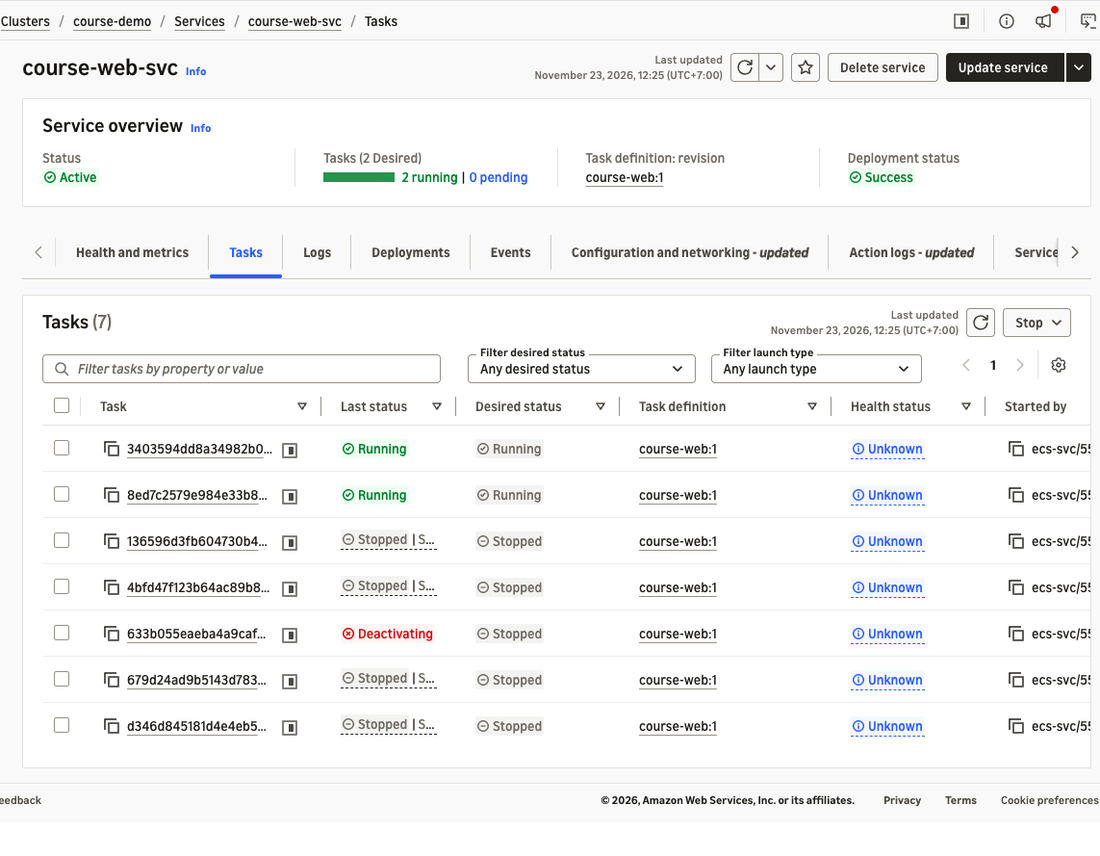
Service, Tasks tab 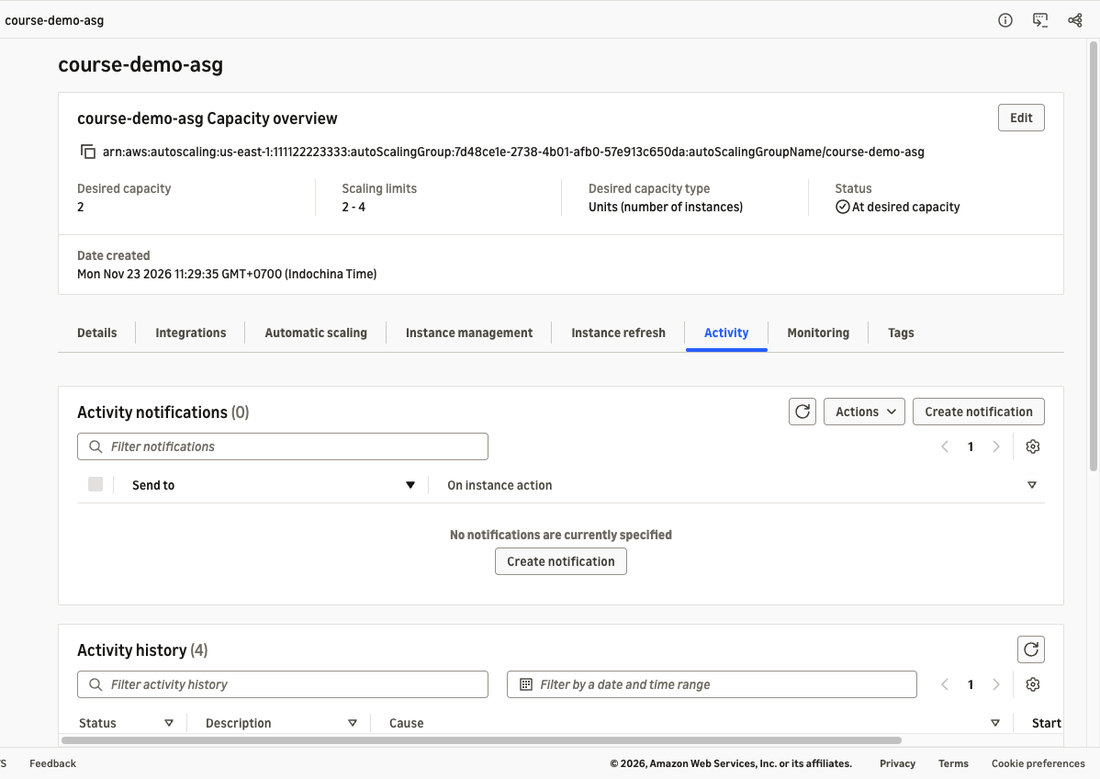
Auto Scaling group: capacity and the Activity tab 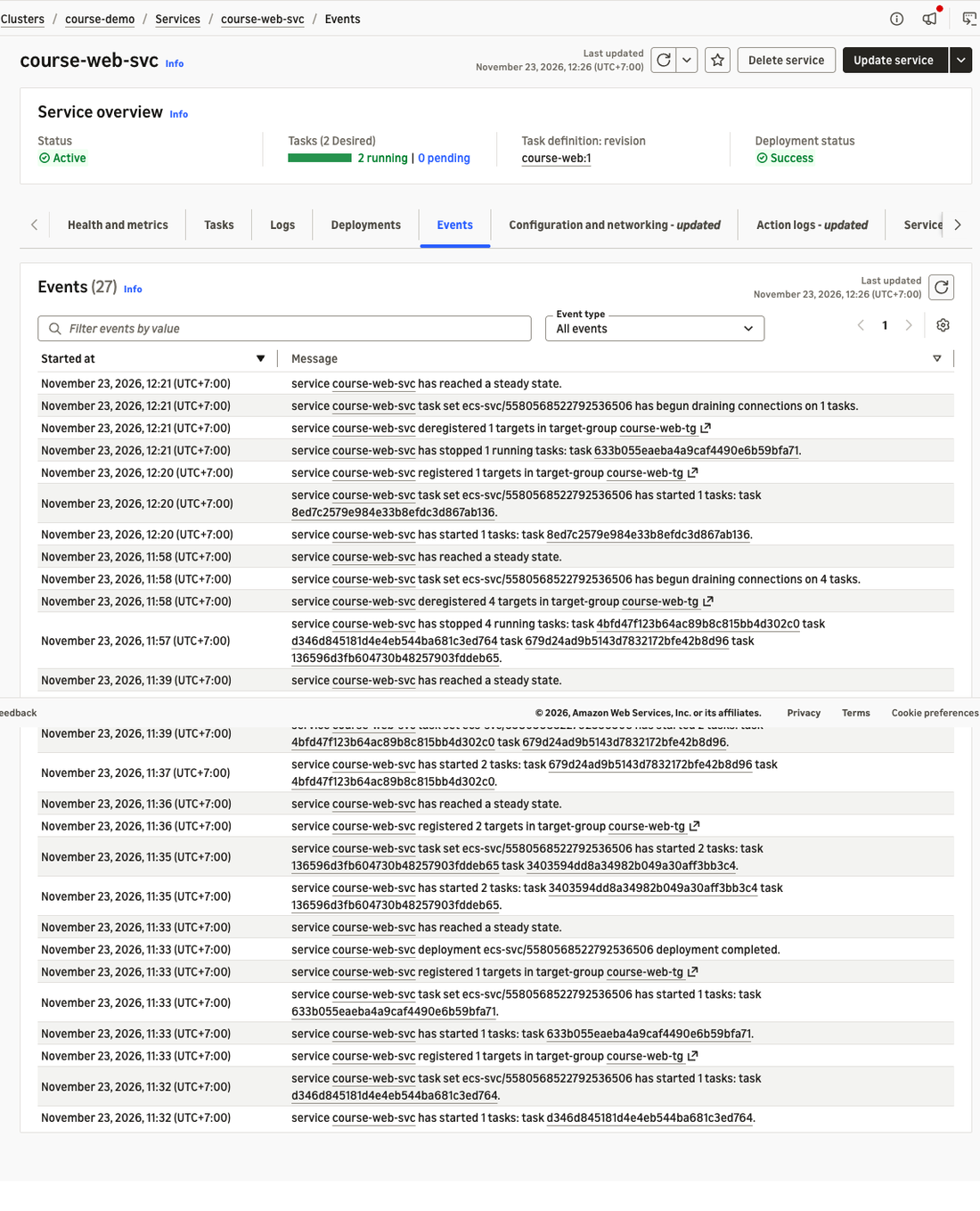
Service events: tasks started, registered with the target group, steady state - Service